# Getting your UPS API credentials
To recover tracking numbers for your orders automatically, we need three things from your UPS
account. This takes about 15 minutes and costs nothing — the UPS Tracking API is free.
**What we need at the end:**
| **Client ID** | A long string of letters and numbers |
| **Client Secret** | A second long string — shown **only once**, see step 5 |
| **Account number(s)** | Your 6-character UPS shipper number, for every account you ship on |
---
## Before you start
You need a **UPS.com account with a shipper number** — the account you already ship on. If you have
a UPS invoice, the shipper number is on it. If several departments or locations ship on different
account numbers, gather all of them; we need every one.
The person doing this should be able to sign in to ups.com as your company.
---
Step 1 — Sign in to the UPS Developer Portal
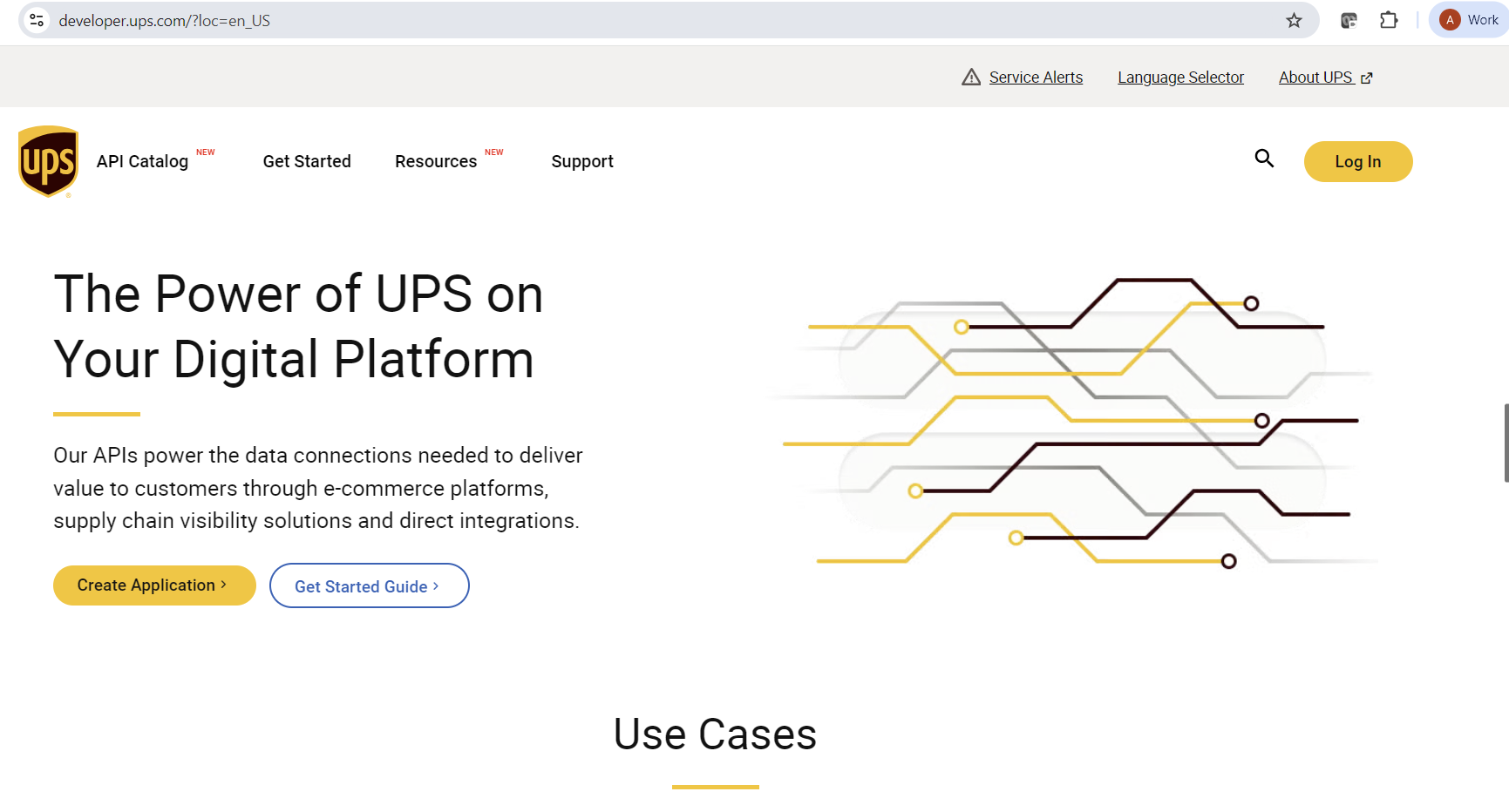
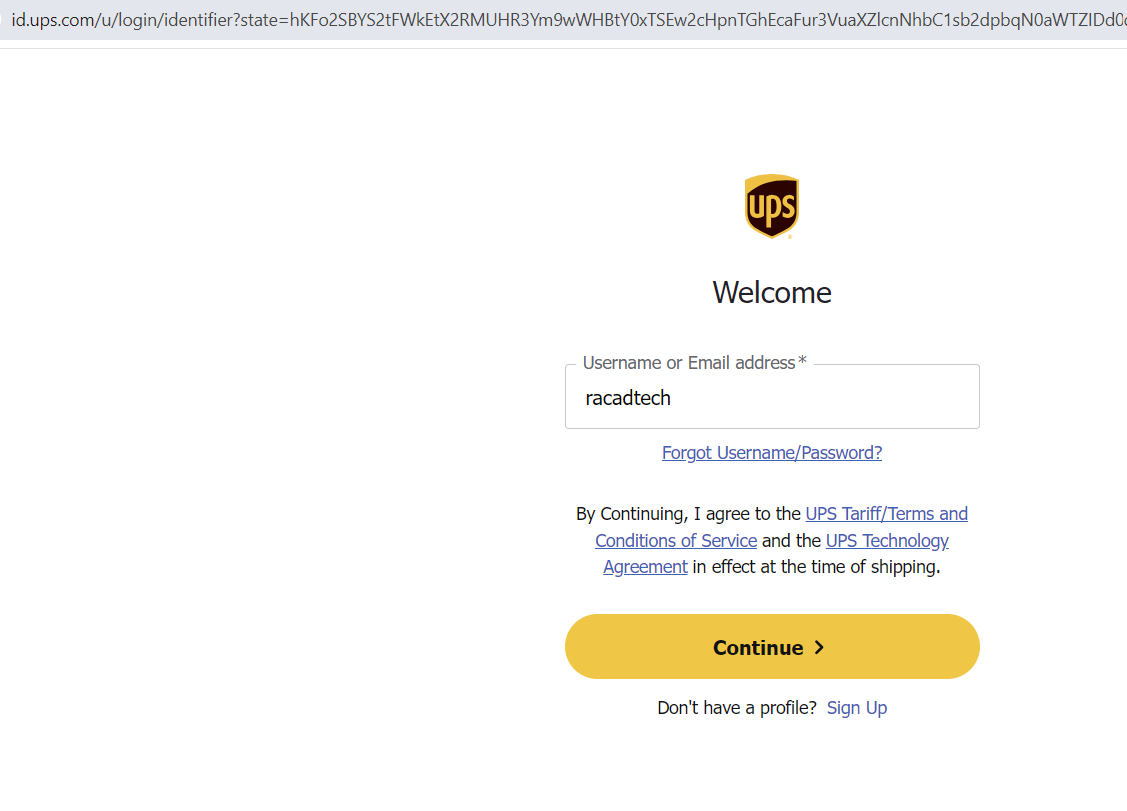
Go to https://developer.ups.com and sign in with your existing UPS.com username and password.
You do not need a separate developer account. If you have never used the portal before it will
ask you to accept the developer agreement the first time.
Step 2 — Create an app
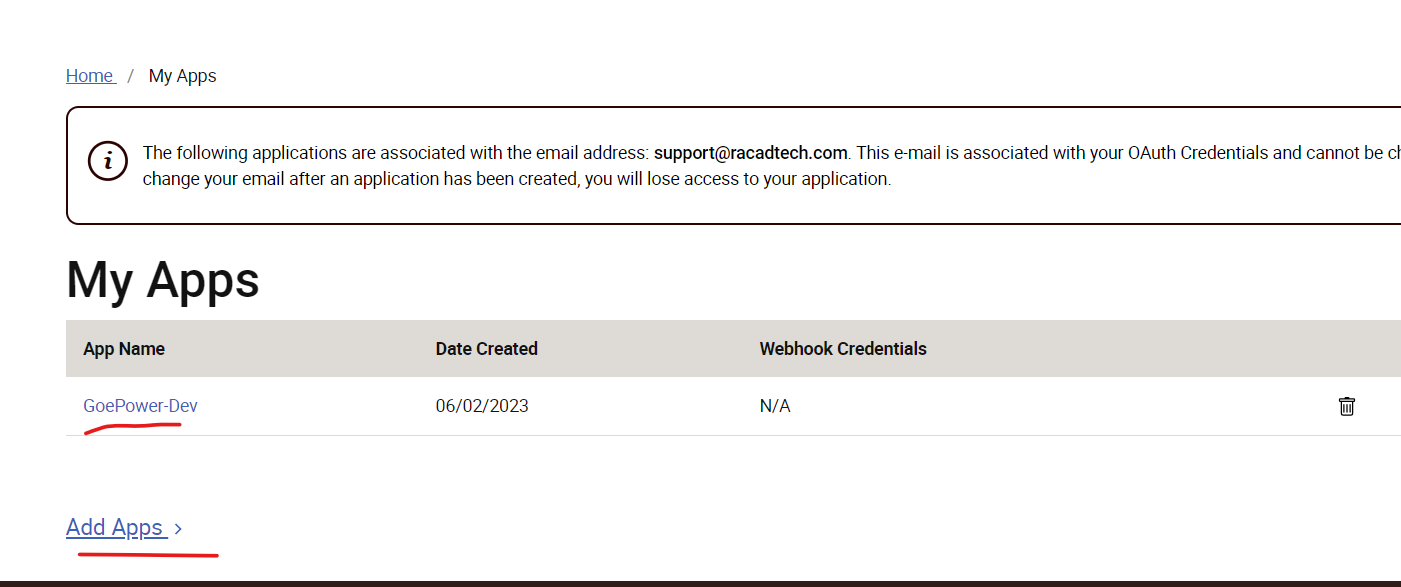
From the menu, open Apps, then Add Apps (sometimes shown as *Create App*).
UPS asks who the integration is for. Choose the option meaning **"I want to integrate UPS technology
into my own business"** — not the third-party or reseller option. You are integrating for
yourselves.
Give the app a name you will recognise later, such as `Order Tracking`.
Step 3 — Link your UPS account number
The app must be linked to the UPS account you actually ship on. When prompted for an account
number, enter your **shipper number** (6 characters, letters and digits).
> **This step matters more than it looks.** A reference number is only unique *within* a UPS
> account, so the lookup is scoped to your account number. If the account is not linked to the app,
> tracking lookups return nothing at all — with no error to explain why.
If you ship on more than one account number, note them all down. You can add the others later, or
create the app against your main account and send us the full list.
## Step 4 — Select the products (APIs)
You will be asked which UPS APIs the app may use. Select:
- **Tracking**
- **Authorization (OAuth)** — sometimes listed as *OAuth Client Credentials*, and sometimes added
automatically
Do **not** select anything else. We only read tracking information; the app cannot create shipments,
buy labels, or change anything on your account.
Step 5 — Copy the Client ID and Client Secret
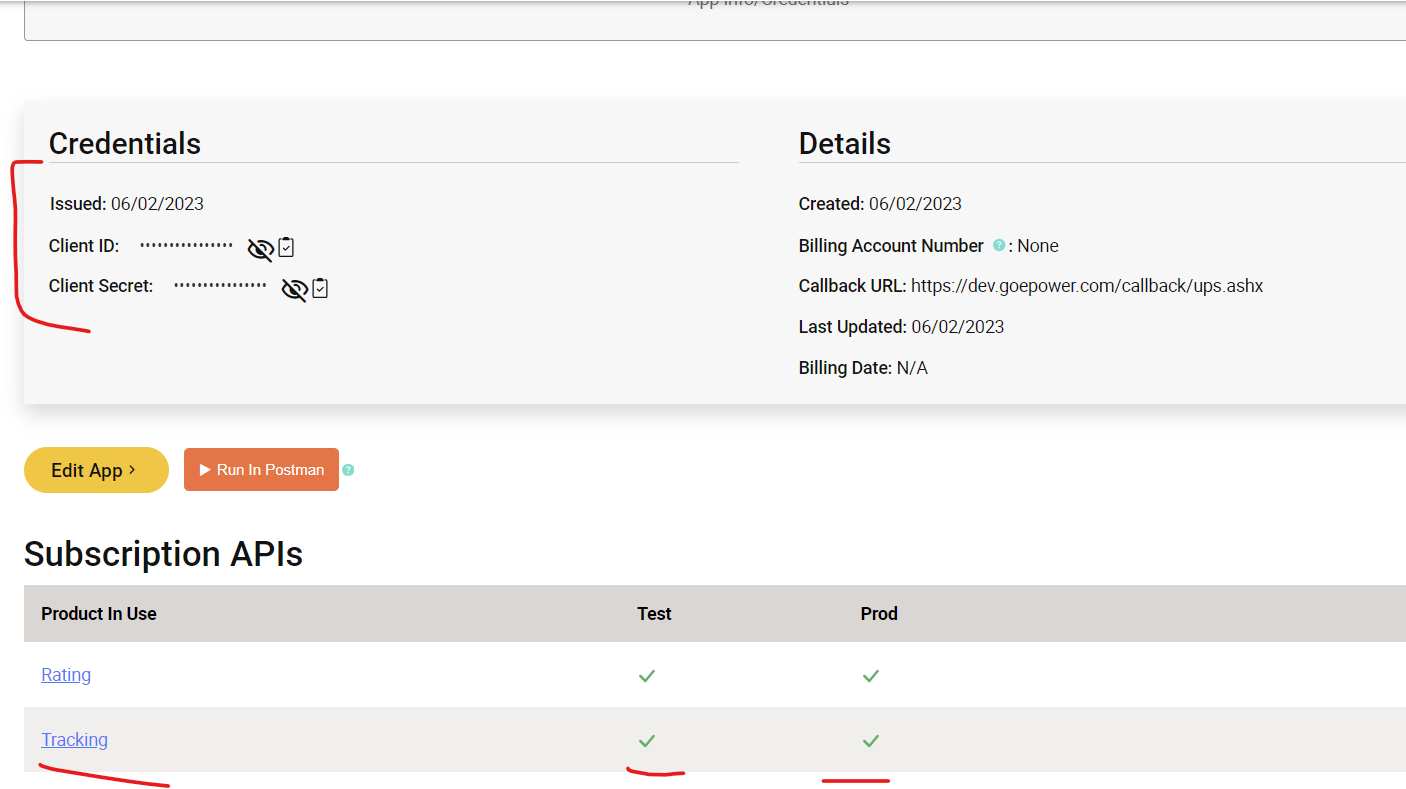
Once the app is created, UPS shows the **Client ID** and **Client Secret**.
> **Copy the Client Secret immediately and store it somewhere safe.** UPS displays it **once**. If
> you navigate away without copying it, you cannot retrieve it — you have to generate a new secret,
> which invalidates the old one.
The Client ID stays visible and can be looked up again at any time.
Step 6 — Find your account number(s)
If you do not already have it: sign in at **ups.com** → your profile → **Accounts and Payment** (or
look at any UPS invoice). The shipper number is 6 characters.
Send us **every** account number you ship on. We try them in order and learn which one each of your
customers ships under, so a missing account number shows up as "we can never find these shipments."
---
What to send us
- [ ] Client ID
- [ ] Client Secret
- [ ] Every UPS account number (shipper number) you ship on
**Please do not email the Client Secret.** Send it by whatever secure method we have agreed —
a password manager share link, or a phone call. Email it and it sits in two mailboxes indefinitely.
---
What we do with them
We store both values **encrypted**, and the dashboard never displays them back once saved. They are
used for exactly one thing: asking UPS *"what tracking number has reference number `<your order
ID>`?"*
The Tracking API is **read-only**. These credentials cannot create shipments, print labels, change
addresses, or spend money on your account. If you ever want to revoke them, delete the app in the
UPS Developer Portal and the access stops immediately.
---
Troubleshooting
**"I can't find Add Apps."** The portal reorganises occasionally. Look for *Apps*, *My Apps*, or
*Developer Dashboard* in the top navigation. The goal is a page listing applications with a button
to create a new one.
**"It asks me to choose an application type / environment."** If offered a choice between **Test
(CIE)** and **Production**, and you are giving us live credentials, choose **Production**. Test
credentials only work against UPS's test system and will never find your real shipments.
**"I already have an app for something else."** You can reuse it, as long as it has the **Tracking**
product enabled and is linked to the right account number. Send us that app's Client ID and Secret.
**"I lost the Client Secret."** Open the app in the portal and generate a new secret. The old one
stops working the moment you do, so tell us when you rotate it and send the new value.
**"We use an old UPS Access Key."** Those are the previous generation of UPS credentials and are no
longer issued. You need an OAuth Client ID and Secret as described above.
Was this article helpful?
That’s Great!
Thank you for your feedback
Sorry! We couldn't be helpful
Thank you for your feedback
Feedback sent
We appreciate your effort and will try to fix the article